Lifetime licence · free demo for every board · questions: arslan.ziya@gmail.com
Tutorial videosPricing

basketBoard7 20 video lessons

Basketball scoreboard software tutorials

basketBoard7 is the basketball scoreboard software for LED displays, projectors and TV graphics. These 20 lessons, 2 h 7 min in all, go through the program page by page: pick a lesson below and it plays here. The videos have no narration; on-screen captions explain each step.

  • 20 lessons
  • 2 h 7 min of video
  • On-screen captions

Main Window and Game Page

Match control

basketBoard7 Tutorial 01.05 - Rules and Presets6:05

01.05 Rules and Presets

How to choose the playing rules in basketBoard7: the Period & Penalty Settings dialog with its five presets (FIBA, U/W, NBA, NCAA M, NCAA W), the period lengths and labels, the team-foul limit, the shot clock values and the time-out lengths. We switch to NBA and NCAA M to show what changes on the control panel and on the board, then return to FIBA.

Chapters
  1. The settings dialog
  2. Period rows
  3. Fouls, shot clock and time-outs
  4. Presets
  5. NBA on the board
  6. NCAA M on the board
  7. Cancel and back to FIBA
basketBoard7 Tutorial 01.06 - Player Stats on the Board (Names, points and fouls of every player)6:18

01.06 Player Stats on the Board (Names, points and fouls of every player)

How to show player names, points and fouls on the board with basketBoard7: the Player Stats window with the two team grids, entering fouls and points, the foul-out mark, Show Player Stats for the player panels on the board, and Clear Home / Guest Stats before a new match.

Chapters
  1. Opening Player Stats
  2. The team grids
  3. Points and fouls
  4. Player panels on the board
  5. The guest team
  6. Window icons
  7. Score and team fouls
  8. Clearing the stats
basketBoard7 Tutorial 01.07 - Tool Icons of the Game Page5:51

01.07 Tool Icons of the Game Page

The tool icons of the basketBoard7 Game page: the keyboard shortcuts and the Keyboard Hook Manager, sound and horn, background video and middle layer image, the shortcuts to the Language and Remote Control settings, UDP broadcast, Scoreboard Console, NDI output, the compact-size button and the right mouse button.

Chapters
  1. Keyboard shortcuts
  2. Sound and horn
  3. Background video and image
  4. Language and remote control
  5. UDP and Scoreboard Console
  6. NDI, window size and right-click

Media player

basketBoard7 Tutorial 02 - Media Player (Playlists, clips and videos on the board)7:01

02 Media Player (Playlists, clips and videos on the board)

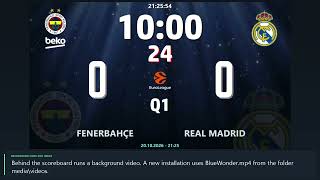
How to use the Media Player of basketBoard7: playlists 1 to 20, the clip list, Add Clip and Delete Clip, playing one clip with Play, Pause and Stop, running a playlist with Start and Finish, Return to Scoreboard, sound, auto repeat, display mode and the URL page for web videos. The demo plays the sample clip of a new installation on the board and returns to the FENERBAHÇE - REAL MADRID scoreboard.

Chapters
  1. The Media Player page
  2. Playlists
  3. Adding and removing clips
  4. Playing one clip
  5. Running a playlist
  6. Return to Scoreboard
  7. Sound, repeat and display mode
  8. Web videos (URL)

Info screens and match graphics

basketBoard7 Tutorial 03.05 - Info Screens (The 15 basketball screens of the FIBA preset)5:48

03.05 Info Screens (The 15 basketball screens of the FIBA preset)

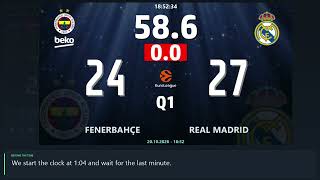
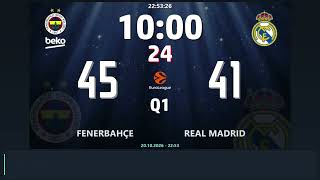
The 15 basketball info screens of basketBoard7 (FIBA preset): starting five, player intro, score, foul, team fouls, timeout, instant replay, period and final result, game leaders, box score, player of the game, standings, results and officials. Each screen is filled in its editor and shown on the board. Demo: FENERBAHÇE vs REAL MADRID, third quarter, 58 to 54.

Chapters
  1. The Info Screens page
  2. Players and baskets
  3. Fouls and timeouts
  4. Review and results
  5. Statistics and awards
  6. Competition and officials
  7. Hide Screen

Statistics

Sponsored, advertisement and chroma key modes

basketBoard7 Tutorial 05.02 - Advertisement Mode7:08

05.02 Advertisement Mode

Advertisement mode in basketBoard7: the board is shared by a scoreboard box, up to two banners and a large media area for clips, a camera, an NDI source or a part of the screen. The Media Player, Camera, Screen Capture and Settings tabs of the Advertisement page and the banner editor with scrolling text, sponsor images and banner playlists.

Chapters
  1. Switching to Advertisement mode
  2. Media Player
  3. Camera and Screen Capture
  4. Settings: the layout
  5. Banner editor
basketBoard7 Tutorial 05.03 - Chroma Key (A keyed scorebug and graphics for your vision mixer)6:19

05.03 Chroma Key (A keyed scorebug and graphics for your vision mixer)

Chroma Key mode in basketBoard7: a compact scorebug and keyed graphics on a plain key colour, ready to be keyed over the live picture by a vision mixer or streaming software. The CK page: scorebug, Score and Substitution graphics, info screens as lower thirds, clips, camera and screen capture behind the graphics, and the four key colours.

Chapters
  1. What chroma key is for
  2. The scorebug
  3. Score graphic
  4. Substitution graphic
  5. Info screens
  6. Media, camera and capture
  7. Key colour

Settings, design editor and remote control

basketBoard7 Tutorial 06.02 - Board Design Editor (Pages, elements, colours and fonts, own designs)6:47

06.02 Board Design Editor (Pages, elements, colours and fonts, own designs)

The board design editor of basketBoard7: pages and elements, Location and Style properties, colours and fonts, Save & Apply, Save Design As and Factory Settings, and choosing a stored design in the design list. Guide chapters 17 (Board designs) and 18.4 (Board Design).

Chapters
  1. Opening the editor
  2. Pages
  3. Elements and the eye
  4. Location and Style
  5. Changing a colour
  6. Rows, colours and fonts
  7. Save Design As and Factory Settings
  8. The design list

Try basketBoard7 free

Follow the lessons on your own PC. The demo has every feature and shows only a small DEMO watermark.

Tutorials for other sports